If you need your shop contact information displayed on the report, you must use ShopStream Connect™ to setup the report with this information and print it.
Navigation and menu options will vary by device and/or operating system (PC, mobile, etc).
To view and/or print the Vehicle System Report using the Snap-on Cloud, a PDF file type viewer is needed.
To upload data to the Snap-on Cloud, the diagnostic tool must be connected to Wi-Fi, and you need to have a Snap-on Technician Profile.
Using a PC
| 1. | Login to your account at ALTUSDRIVE.com. |
| 2. | Find the Vehicle System Report to print, and then select the menu icon on the card (upper right). |
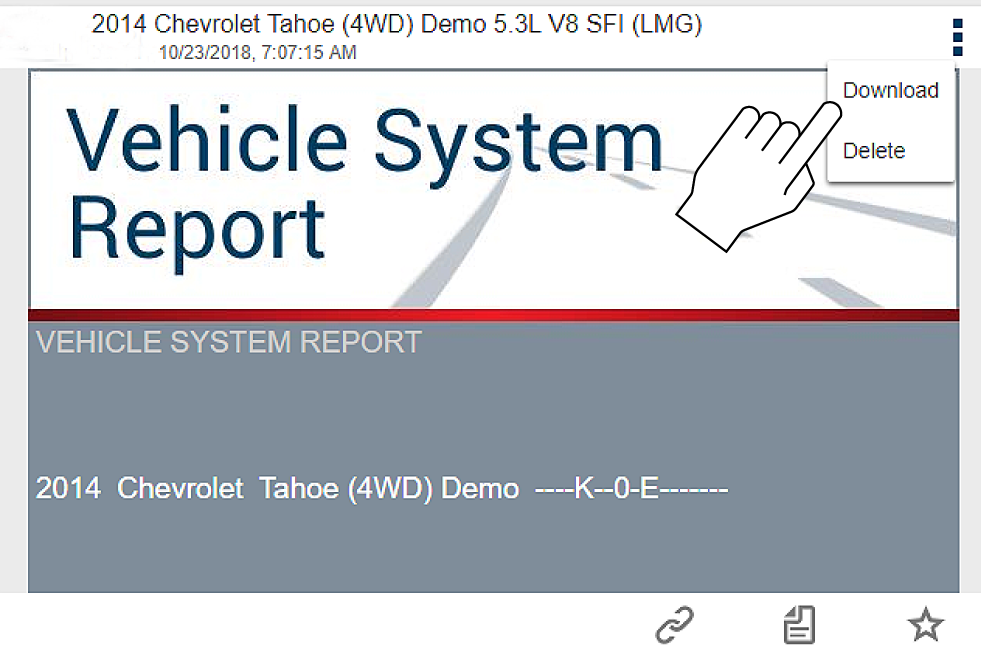
| 3. | Select Download. |
| 4. | Once downloaded, you can print or share the report from your device. |
Using a Mobile Device
| 1. | Login to your account at ALTUSDRIVE.com. |
| 2. | Find the Vehicle System Report to print, and tap it (Figure - A) to open the report detail card. |
| 3. | Tap the report again (Figure - B). This may either start an automatic download or open the report in a new browser tab (Figure- C). If needed, tap and hold the report (Figure - D) to display the options menu and select the applicable option to download the file. |
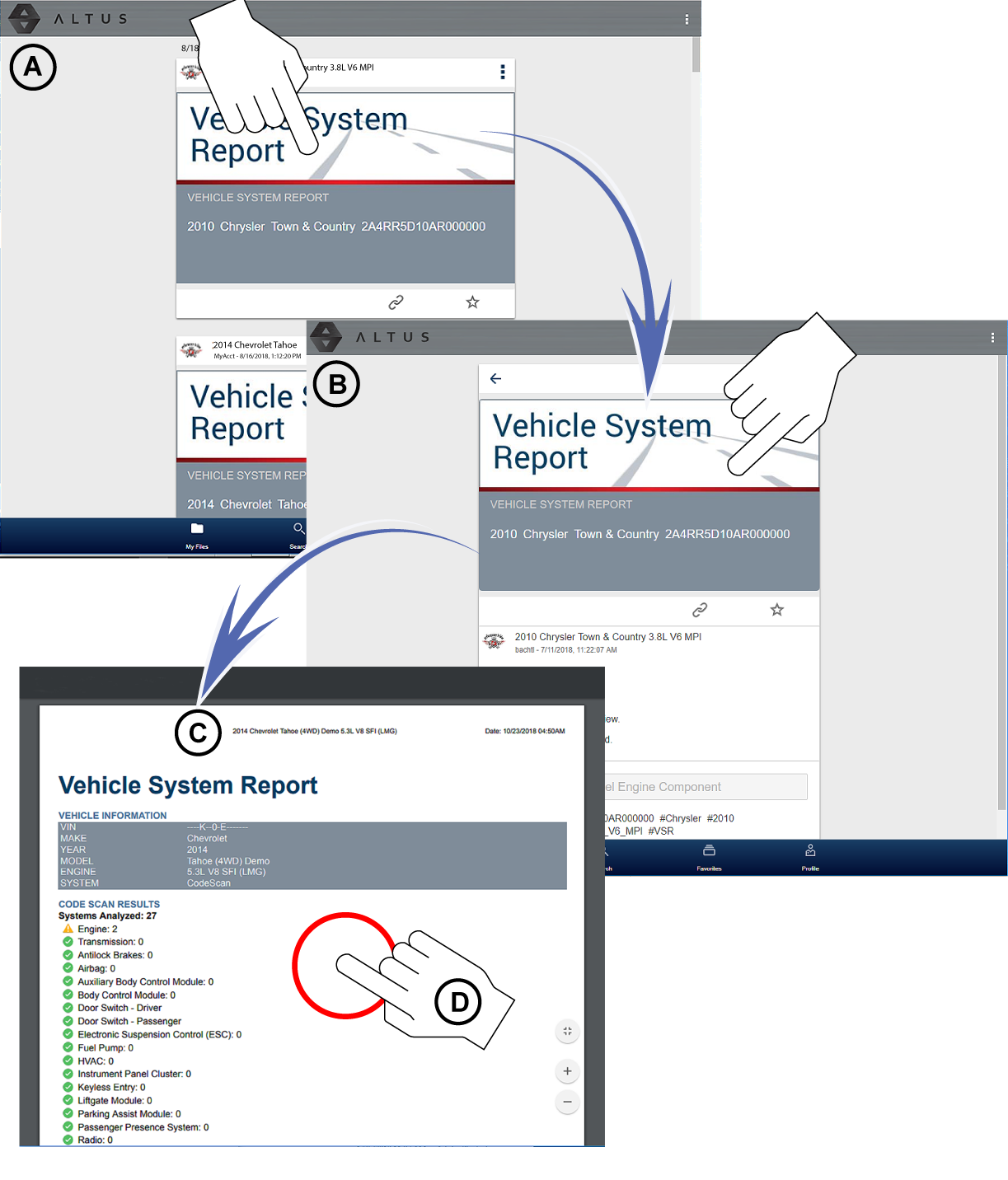
| 4. | Once downloaded to your device, use an application to print the report. |
If you do not have print capabilities on your device, you may be able to download or transfer/share the file to another device with print capabilities. Refer to the “User Guide” of your device for printer setup information.


