Google CHROME for PC is the recommended browser, other browsers and devices may not display content as designed. Since content is changed periodically, it is recommended that you clear your browser cache to ensure you are viewing current content (check your browser settings for manual and automated clearing methods).
Navigation Help
PC Users
| ● | For select topics, use the main MENU on the left-side of the screen to filter down and choose topics. |
If the application is displaying in "mobile mode" (see below) expand the window to full size to use the PC menu.
Mobile Device Users
| ● | For select topics, click the  MENU ICON on the upper right to open the main menu, then filter down and choose a topic. MENU ICON on the upper right to open the main menu, then filter down and choose a topic. |
| ● | Use your mobile device in landscape mode, for the best experience. |
All Users
| ● | In addition to the onscreen navigation, you can use your browser FORWARD and BACK controls to move respectively to the next/last page (topic) visited. |
| ● | When scrolling down for long topics, a  BACK TO TOP button is automatically displayed on the lower right. Use this to jump back to the top of the screen. BACK TO TOP button is automatically displayed on the lower right. Use this to jump back to the top of the screen. |
| ● | To jump back to the top of the main menu of the active page, click the LOGO in the upper left. |
| ● | To see most screenshots with better resolution, click the image to expand it. Click it again to reset it to normal size. |
Try it here 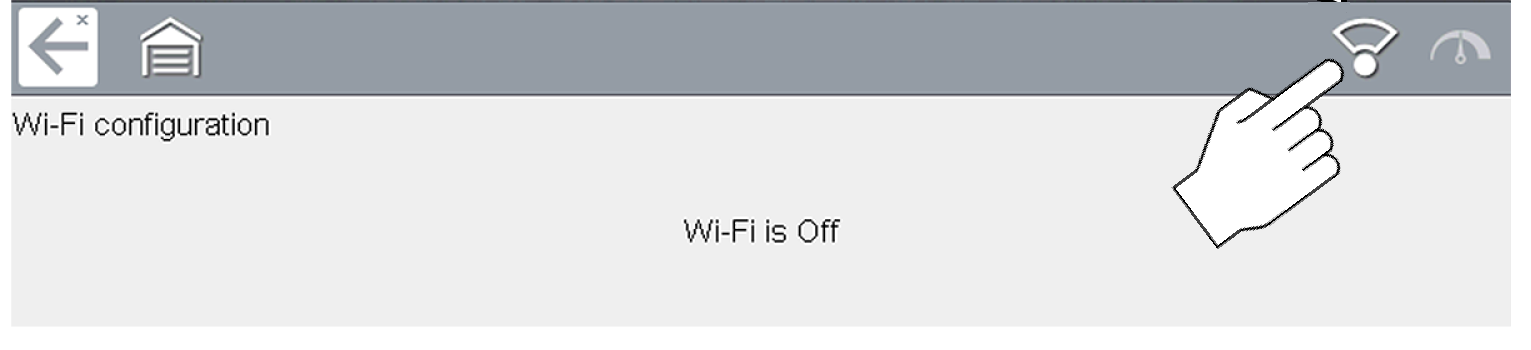
Toolbar Icons
Icons are not applicable on every page.
|
Icon |
Description |
|
|---|---|---|
|
|
Previous Topic in Sequence |
Move to the previous topic in the sequence. |
|
|
Next Topic in Sequence |
Move to the next topic in the sequence. |
|
|
Dropdown Menu |
Some topics are located in dropdown menus indicated by |
|
|
|
Open print setup window. You can also use the print control from your browser.
Option Requirements: Enable Background Graphics, and Headers and Footers |


 .
. 
About this Information
The information within this knowledge base may be applicable to multiple markets. Not all the information included may be applicable to your diagnostic tool, software version, device or product.
All content within this knowledge base is based on the latest information available at the time of publishing. Some content within this knowledge base may not be applicable to other diagnostic software versions.
The illustrations/pictures/images in this knowledge base are intended as reference only and may not depict actual screen results, information, functions or standard equipment.
All information, specifications and illustrations in this knowledge base are subject to change without notice.
The content in this knowledge base is periodically revised to ensure the latest information is included.